


Use onomeo in Cherry Studio
Cherry Studio is a desktop chat app that works with many model services. Follow the five steps below to add onomeo as a provider and chat with this site's models.
A desktop chat app for many model services.
The three values it asks for
OpenAI-compatible
Use these details in any OpenAI-compatible tool.
No key yet? Create one on the My account page, then come back — the fields below fill in by themselves. Go to My account
Step by step
Install Cherry Studio
Download Cherry Studio from cherry-ai.com and open it. On the welcome screen, press Set up another provider.
Add onomeo as a provider
Press Add Provider at the bottom left. Provider Name: type onomeo. API Key: your key (copy it from "The three values it asks for" above). Under OpenAI, type the address below as the Base URL; the Request path line under it then reads https://onomeo.com/v1/chat/completions. Then press Add.
https://onomeo.com
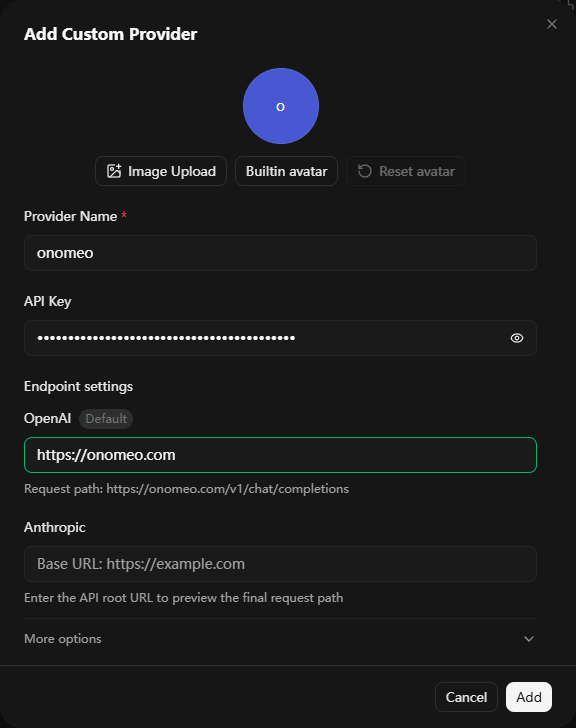
Fill in the three places marked, check the Request path line, then press Add. Choose the model
Cherry Studio lists the models your key can use. Tick Auto, then press Add selected models. It then checks the model with one real request and switches the provider on.
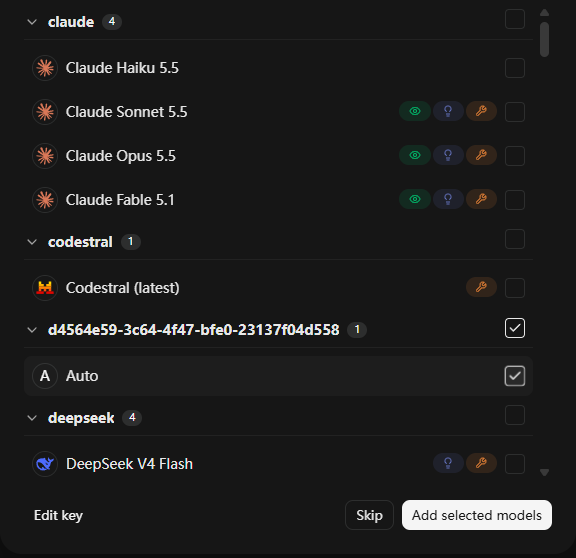
Tick Auto, then press Add selected models. If the check does not pass, close the window and turn on the switch at the top right of the provider page yourself.
Set the default model
Press Next. Under Default Assistant Model, choose Auto; the other two fill in by themselves. Then press Get Started.
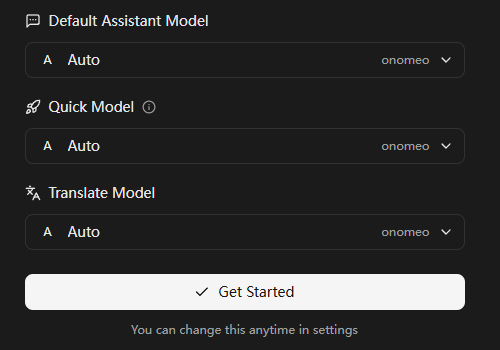
Choose Auto in the first box, then press Get Started. Start chatting
Cherry Studio opens on its agents page and may ask "Enable the API Gateway?": press Cancel, ordinary chat does not need it. Press the speech-bubble icon on the left, type a message and press Enter.
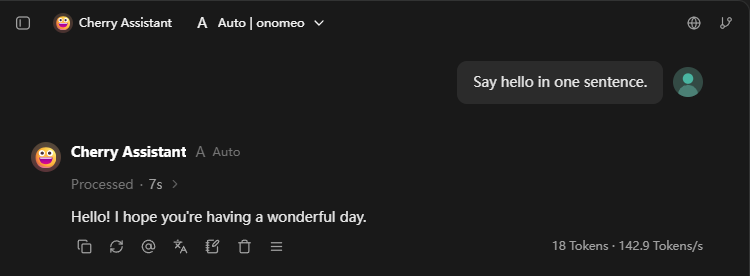
A reply means the connection works. Auto | onomeo at the top is this site's model. Each message counts as 1 call, and Cherry Studio uses 1 more to name the conversation. Measured on 9 October 2026 with Cherry Studio 2.1.4: the message above took 2 calls on auto and was not charged.
If it will not connect
- The Base URL is https://onomeo.com with nothing after it. Cherry Studio adds /v1/chat/completions itself, as the Request path line under the box shows.
- The group Auto sits in is named with a string of letters and digits. That is Cherry Studio's own id for this provider, and it is expected.
- To add more models later, open the onomeo provider in Settings and press Sync models.
- 401: the key is wrong; open the onomeo provider and correct API Key. 402: insufficient balance. Claude, GPT and other big models are charged by usage; top up on the Pricing page or switch to a free model.
- Once your own provider keys are connected on the My providers page, their models appear in the same list with names starting my/. This site does not charge for those calls.